How to Convert a PDF to Editable Word
You need to reuse the text from a PDF, but copy-paste loses the formatting and the layout falls apart. The fix is a proper conversion that rebuilds the document as editable Word — with the layout preserved. Here's how.
Why PDF-to-Word is tricky
- Layout gets lost by tools that just dump the text in a single stream.
- Fonts and spacing change, so the Word file looks nothing like the original.
- Tables and columns collapse if the layout isn't understood.
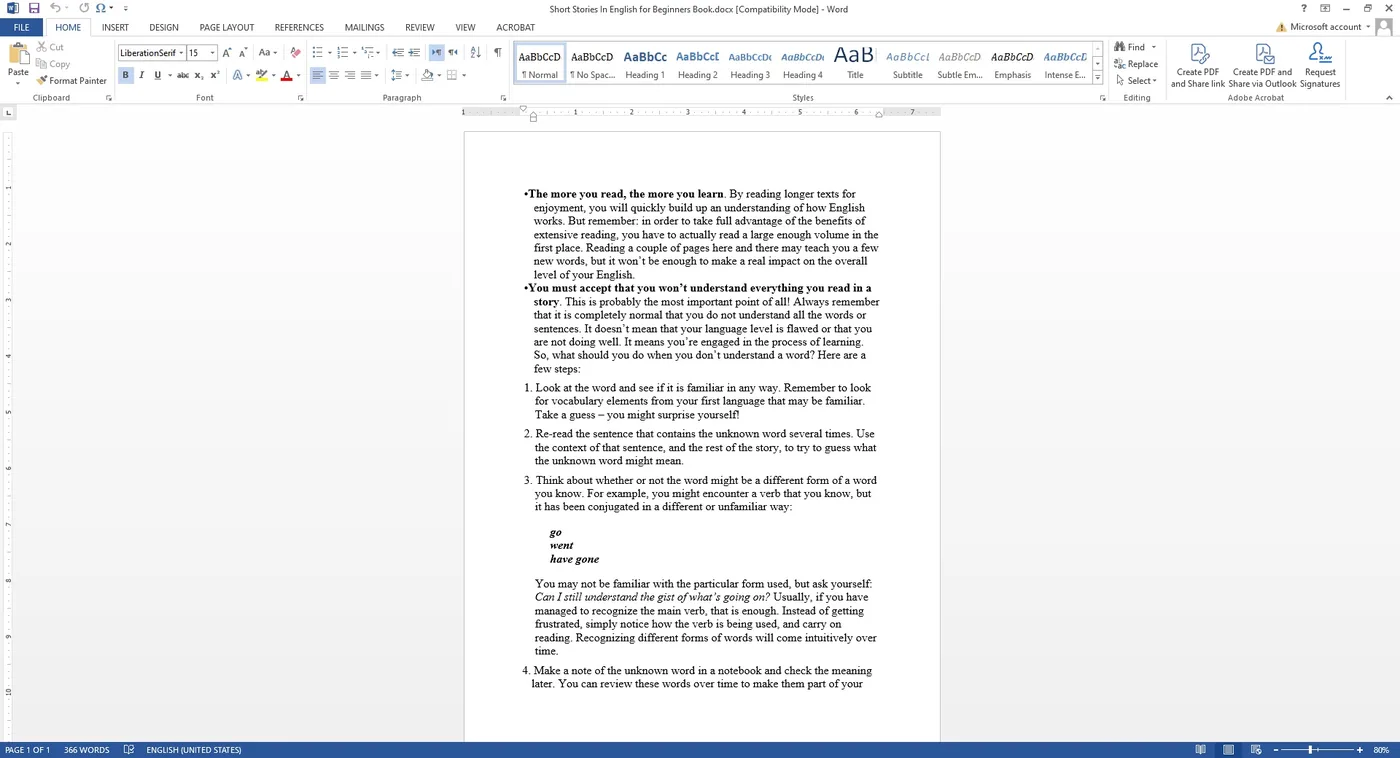
A good converter handles all three, so the Word file reads — and edits — like the original.
How to convert, step by step
- Open the PDF.
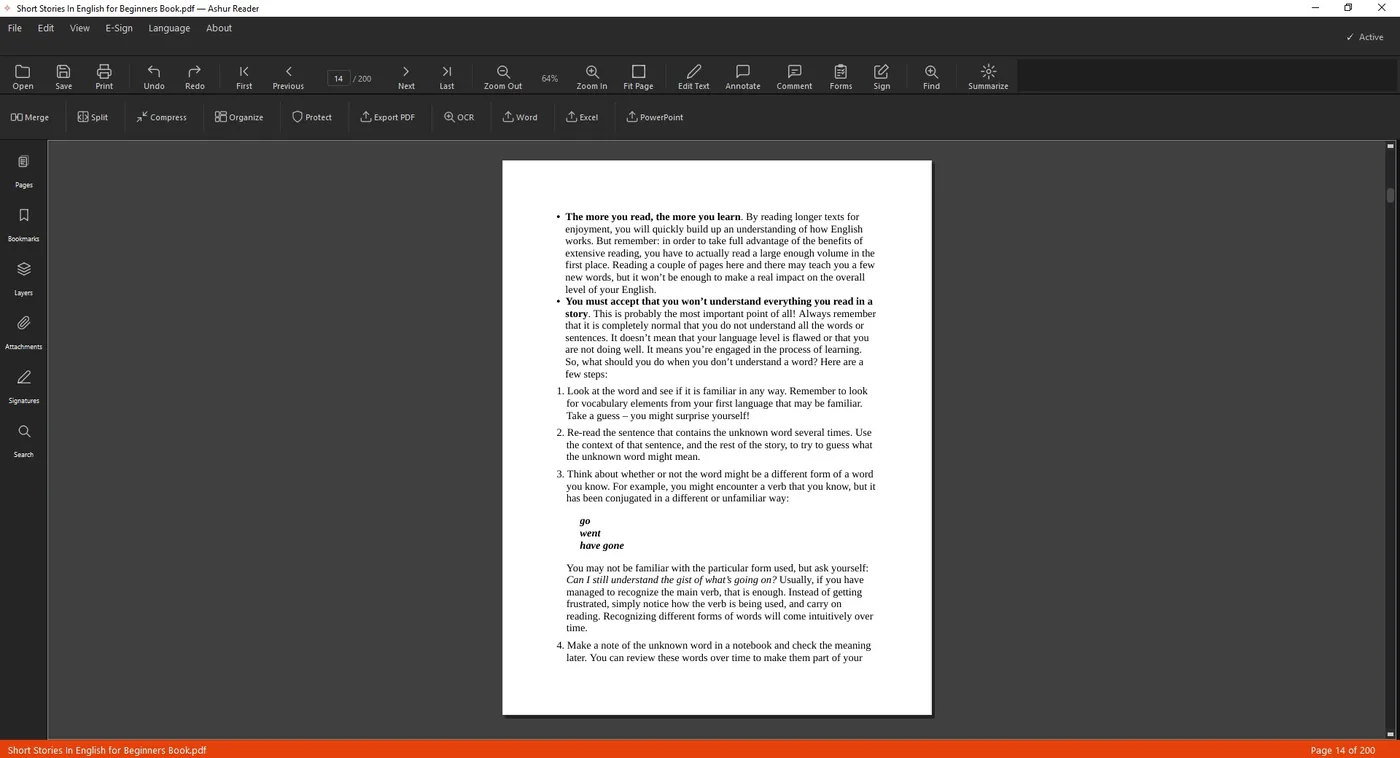
- Choose Export, then Word.
- Pick the mode — editable text, or layout-faithful — depending on whether you want to rewrite freely or match the original closely.
- Choose the page range.
- Export. Open the result in Word and edit it like any other document: change headings, reflow paragraphs, restyle lists.
Editable vs layout-faithful
Editable mode gives you clean, flowing text that's easy to rewrite. Layout-faithful mode reproduces the original's positioning more closely — better when exact look matters.
If your PDF is a scan
A scanned PDF is an image, so there's no text to convert yet. Run OCR first to create real text, then export to Word.
See it in action
Related guides: Run OCR on a scan · Edit an English PDF
Export to Word, Excel, and PowerPoint
AshurReader converts PDFs to editable Office files with the formatting preserved — high-quality, and entirely offline.
Download for Windows