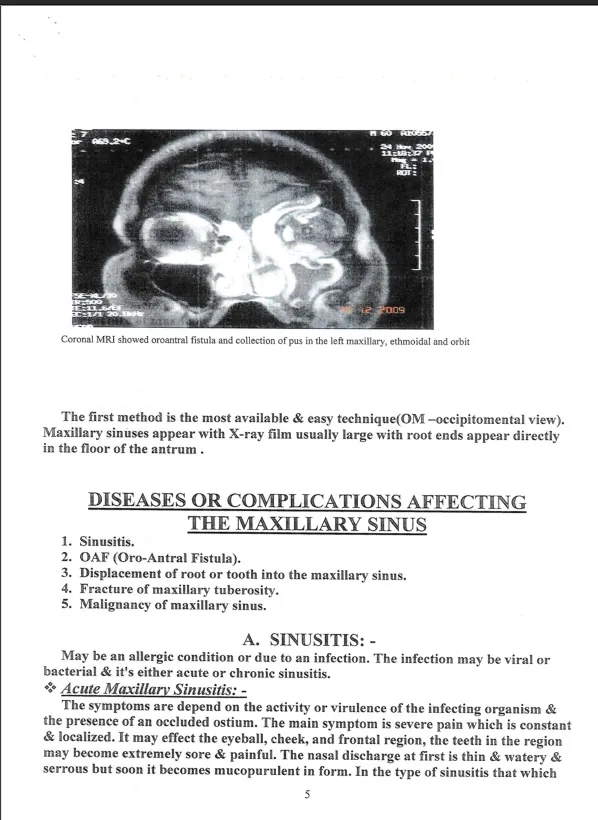
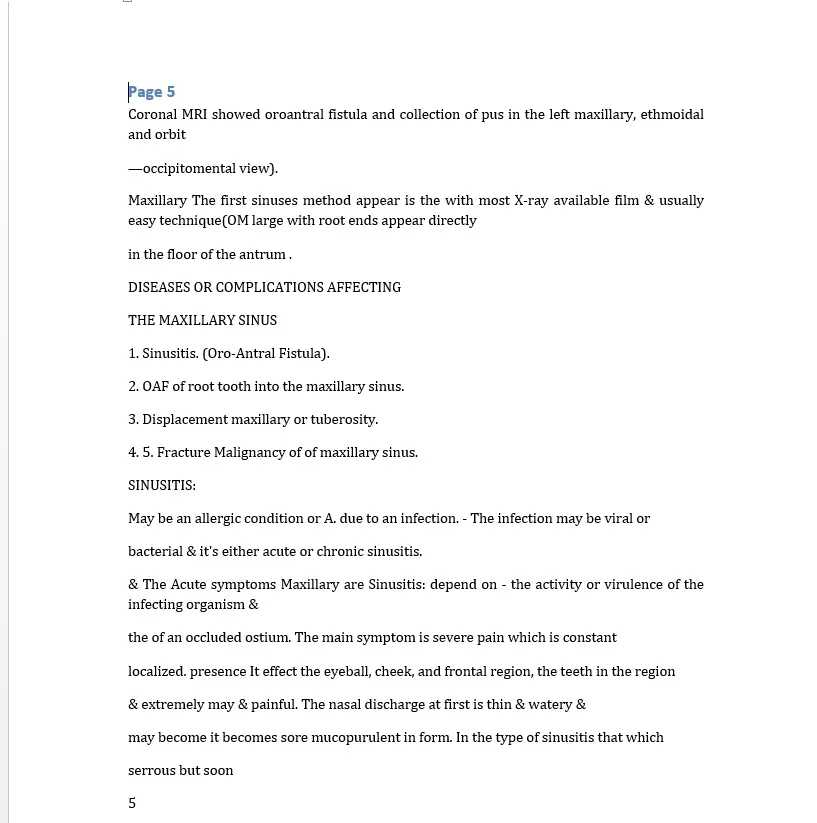
A scanned document is a photo of a page — your computer sees pixels, not words. Optical Character Recognition (OCR) is what turns those pixels into real text you can search, copy, and edit. Here's how to do it well.
What OCR is good for
Turning a scanned contract, book, or printout into selectable text.
Making an image-only PDF searchable so you can find a phrase in seconds.
Pulling text out of a scan to reuse it in Word, Excel, or an email.
Recovering text from an old document you only have on paper.
Before you scan
Scan at 300 DPI or higher — low-resolution images are the most common cause of poor OCR.
Keep the page straight and flat; skew and shadows hurt accuracy.
A clean, high-contrast scan beats a phone photo.
How to run OCR, step by step
In AshurReader, OCR is built in — there's nothing extra to install:
Open the scanned PDF.
Open the OCR tool and choose the language — English, Arabic, or both for mixed pages.
Pick the pages to process (a range, or the whole document).
Run OCR. The page image becomes a layer of real, selectable text.
Review the result — the built-in cleanup tidies up the spacing artifacts that OCR often leaves behind.
Now search it, copy from it, or edit it — and export to Word, Excel, or PowerPoint if you need.
Mixed-language pages
If a page mixes English with another language, choose both and let each script be recognized correctly.
A note on accuracy
OCR is very good, but not perfect. Always proofread numbers, names, and dates on important documents.
See it in action
Before — a scanned page is just an imageAfter — recognized text you can select, copy, and edit