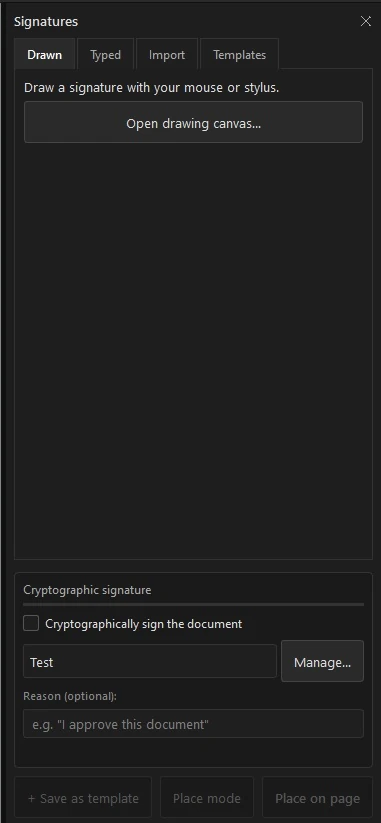
"Signing a PDF" can mean two different things, and knowing which you need saves a lot of confusion. This guide covers both — a simple electronic signature, and a secure cryptographic digital signature — and how to add either.
Electronic signature vs digital signature
They sound alike but do different jobs:
An electronic signature is the visible mark — a drawn, typed, or imported image of your signature placed on the page. It's quick, and fine for everyday approvals.
A digital signature is cryptographic. It binds your identity to the document and detects any change made afterwards, so a recipient can verify the file hasn't been altered. Use it for contracts and anything that needs to be tamper-evident.
How to add an electronic signature
Open the PDF and choose Sign.
Draw your signature, type it, or import an image of it.
Place it where it belongs and resize as needed.
Save. You can reuse saved signatures and stamps next time.
How to add a cryptographic digital signature
Open the PDF and choose the digital signing option.
Select or create your digital ID.
Place the signature field and apply it.
Save. The document now carries a verifiable signature that flags any later tampering.
Which should I use?
For internal sign-offs and forms, a drawn or typed signature is enough. For contracts, official paperwork, or anything you may need to prove wasn't altered, use a digital signature. (This is general information, not legal advice — e-signing requirements vary by country.)